Installing Cute Live Support for DNN 4 & 5
The following guide shows the steps to implement a Cute Live Support into DotNetNuke
6 application. If you haven't downloaded the software, please download the software
copy from here.
1. Modify web.config file and Specify the CuteChat.DataDirectory
    <appSettings>

                          <add key="CuteChat.DataDirectory" value="DesktopModules/CuteSoft_Client/CuteChat"
                    />

                        </appSettings>
2. Execute SQLScripts\cutechat5.sql against DNN database
- Open your SQL Server Query Analyzer from within Enterprise Manager.
- Once you have successfully connected to your SQL Server within query analyzer, open
and execute the Chat SQL file(SQLScripts\cutechat4.sql) against DNN database.
3. Install the PA
- Login to DNN web site as host, go to the host menu and select the Module Definitions.
- Choose Upload New Module from the actions menu, Click the "Browse" button.
- Browse to Dnn4SupportPA31.zip, press the Add and then the Upload New File
link.
4. Deployment files to DNN solution.
- The DNNChatProvider.vb file under App_Code folder should be deployed to App_Code
directory of your DNN installation.
- The license files (CuteLiveSupport.lic) under bin folder should be deployed
to bin directory of your DNN installation.
- logo.ascx file under admin\skins folder should be deployed to admin\skins
directory of your DNN installation.
- Global.asax should be deployed to the root of your DNN installation.
5. Modify CuteChatMail.config file to set up Email/SMTP Configuration.
<settings>
<add key="DefaultMailAddress"
value="LiveSupport<test31415926@gmail.com>" />
<add key="SmtpServer" value="localhost"
/>
</settings>
6. Installing Live Support Operator application.
The Live Support Operator application (LiveSupportOperatorClient.msi) should be
installed on all operator's machines.
7. Logging in operator client using username "admin":
When you initially open the program you will see the screen below:
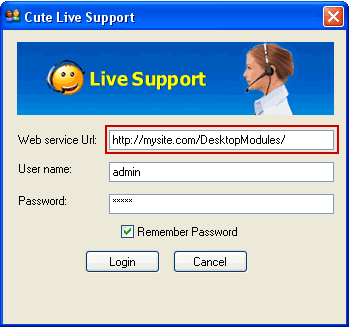
- Web service Url: The Url of your website.
- User name: The operator user name.
- Password: The operator password.
- Remember password: Check this box, if you want to save this password for
next login.
You can set default value of Web service Url by editng LiveSupport.exe.config file.
<add key="CuteChatServiceUrlBase" value="http://yoursite.com"/>
Important note about Web service Url
You must upload your CuteSoft_client folder to this exact location. Otherwise your
Live Chat will not function!
8. Create departments and assign DNN users as operators
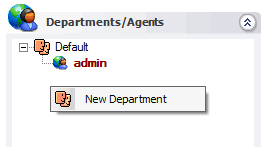
- a. In the "Departments/Agents" panel, right click, click the "New Department" menu,
then add departments.
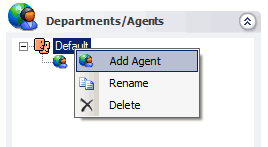
- Select the department, right click, click the "New Agent" menu, then add new agents.
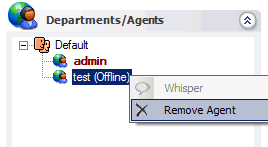
- If you want to remove the agent, please select the agent, right click, click the
"Remove Agent" menu.
|