|
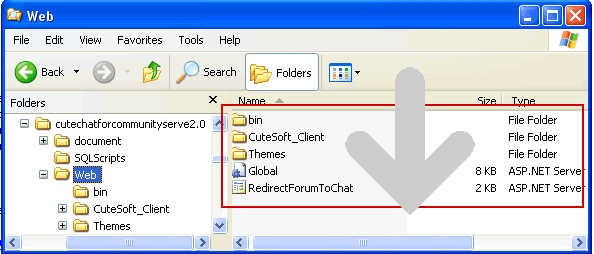
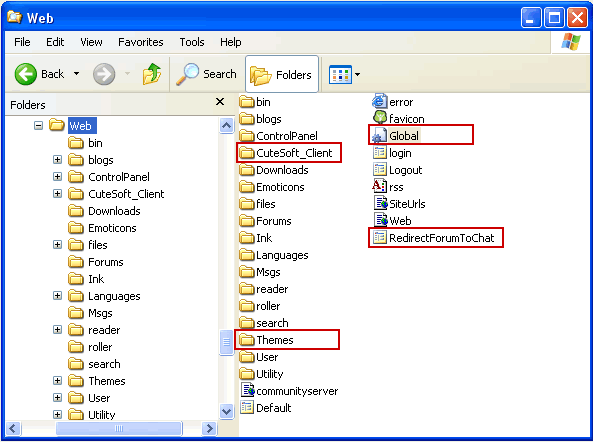
Unzip the zip file and copy CuteChat client files to the Community Server solution. The following files/folder should be deployed to the root of your Community Server installation.
|
 |
Deploying the CuteChat.dll assembly and license file The following files should be deployed to \bin directory of your Community Server installation.
|
 |
Execute SQLScripts\cutechat4.sql against your Community Server database
|
 |
Downloading and installing Live Support Operator: The Live Support Operator application can be downloaded from CuteSoft web site. Once you have downloaded it, you can install it on all operator's machines. |
 |
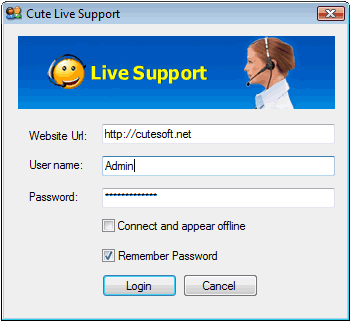
Logging in operator client using username "admin":
When you initially open the program you will see the screen below: Go to Windows->Start->All Programs->Cute Live Support->Config Live Support Operator to set default value of Web service Url: <add key="CuteChatServiceUrlBase" value="http://yoursite.com"/> Important note about Web service Url You must upload your CuteSoft_client folder to this exact location. For example, if the folder is located at http://yoursite.com/livesupport/CuteSoft_Client, then the URL here is http://yoursite.com/livesupport. Incorrect URL can cause exceptions. |
 |
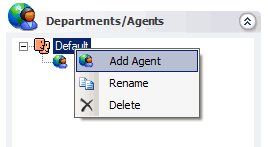
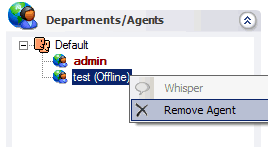
Create departments and assign CS users as operators
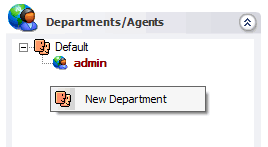
a. In the "Departments/Agents" panel, right click, click the "New Department" menu, then add departments.
|