This guide shows the steps to install Live Support standalone application. If you haven't got the software, please download from here.
| 1. |
Unzip the zip file and create a virtual directory or website pointing it to the 'CuteLiveSupport\ Web' folder (located in the archive). |
| 2. |
Execute SQLScripts\CuteChat4.sql, LiveSupportWeb.sql against your existing database or create a new database.
|
| 3. |
Update the web.config to use your custom connection string. <add key="ConnectionString" value="server=(local);database=CutePortal;uid=test;pwd=test"/> |
| 4. |
Modify CuteChatMail.config file to set up Email/SMTP Configuration. <settings> |
| 5. |
Installing Live Support Operator application. The Live Support Operator application (LiveSupportOperatorClient.msi) should be installed on all operator's machines. |
| 6. |
Logging in as an operator:
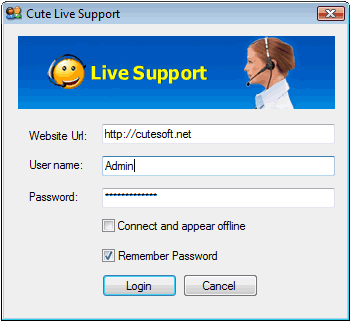
When you initially open the program you will see the screen below:
< br>Go toWindows->Start->All Programs->Cute LiveSupport->Config Live Support Operator to set default value of Web service Url: <add key="CuteChatServiceUrlBase" value="http://yoursite.com"/> Important note about Web service Url You must upload your CuteSoft_client folder to this exact location. For example, if the folder is located at http://yoursite.com/livesupport/CuteSoft_Client, then the URL here is http://yoursite.com/livesupport. Incorrect URL can cause exceptions. |